Chat Filters Are Here in GroupMe
Feb 18, 2026
Quick question: how many GroupMe groups are you in right now? Three? Ten? Twenty?
If you're anything like most people, your chat list is a mix of group chats, direct messages, and that one group from two years ago that still pops up occasionally. Finding the conversation you actually need can feel like scrolling through a never-ending feed.
Not anymore.
Introducing Chat Filters
GroupMe now lets you filter your chat list so you can jump straight to what matters. It's simple, it's fast, and it's about to save you a lot of scrolling.
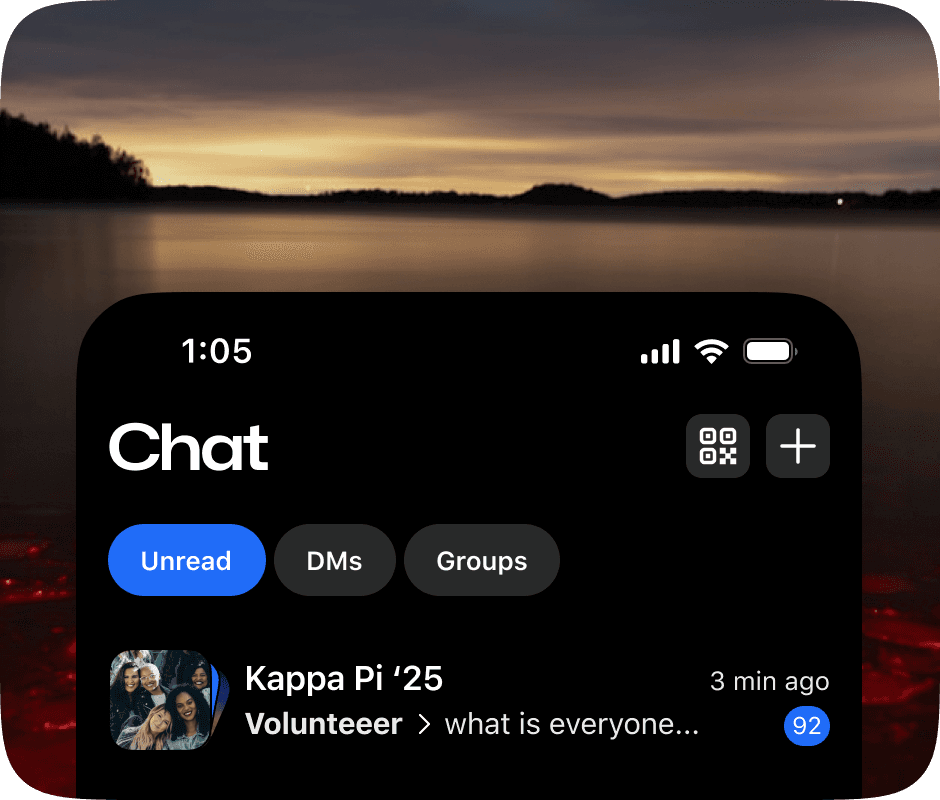
Here's what you can filter by:
Unread: See only the conversations with new messages waiting for you. No more guessing which chats need your attention.
DMs: Show just your direct messages. Perfect for when you need a private conversation without digging through group chats.
Groups: Show only your group chats. Ideal for checking in on your communities without the noise of individual messages.
You're in More Groups Than You Think
Between your family chat, your work team, your book club, your fantasy league, and your college friends, group chats add up fast. Chat filters give you a way to cut through the clutter and focus on what you need right now.
Unread Messages, Front and Center
That feeling when you know you have unread messages somewhere but can't find them? Gone. The Unread filter pulls every conversation with new messages to the top, so you never miss an important update.
DMs When You Need Them
Sometimes you just want to find that one-on-one conversation. Maybe you're looking for an address someone sent you, or you need to follow up on something private. The DM filter makes it instant.
Groups at a Glance
When you want to check on your groups without getting sidetracked by DMs, the Groups filter gives you a clean view of just your group conversations.
How to Use Chat Filters
Using filters couldn't be easier:
Open GroupMe and go to your chat list.
Tap the filter you want: Unread, DMs, or Groups.
Your chat list instantly updates to show only what you've selected.
Tap again to clear the filter and see everything.
That's it. No settings to configure, no menus to navigate. Just tap and go.
The Multi-Group Juggler
You know who you are. You're in groups for school, groups for sports, groups for family, and groups for fun. Filters help you keep it all straight without losing your mind.
The Admin Who Needs to Stay on Top of Things
If you're managing multiple groups, the Groups filter lets you see all your groups at once and quickly spot which ones need attention.
The Busy Bee Who Checks In Between Meetings
Only have a minute? The Unread filter shows you exactly which conversations need you. Catch up on what matters and move on with your day.
Stay Organized, Stay Connected
GroupMe has always been the best way to keep your groups talking. Now it's even easier to keep track of all those conversations.
Chat filters are available now, so open your GroupMe and give them a try. Your chat list will thank you.
Real chats happen here. Now you can find them even faster.
Getting Started with GroupMe
Get the app: Download the GroupMe App or navigate to GroupMe.com
Sign Up or Log In: Go to GroupMe and sign up for an account if you don’t have one. If you already have an account, simply log in.
Create a Group Chat or Event Group: Once logged in, create a new "Event Group". This will be the central hub for all communications about your event.
Invite Members: Send out invites to your community to collect RSVPs for your event. When they RSVP, they'll automatically be added to your event group chat. You can do this directly within the app by sharing a join link or entering in their phone number.


